IRC is the original Internet Relay Chat, one the first (1988) protocol created for "chatting" in real-time on the Internet, and the oldest one still in use. It is also one of the oldest protocols still active on the internet, predating the web by a few years.
This page is mostly a discussion of software that runs on top of IRC and operated by end users.
- Tutorial
- Howto
- Reference
- Installation
- Installation: ZNC
- Goals
- Necessary software
- Setup steps
- Obtain necessary software
- Create a special user
- Create a sudo password for yourself
- Choose a FQDN and get a TLS certificate
- Couple nice things
- Create initial ZNC config
- Create TLS cert that ZNC can read
- Create ZNC system service
- Access web interface
- Add TLS listener for ZNC
- Make ZNC reachable without tricks
- Adding a ZNC user
- SLA
- Design
- Issues
- Monitoring and testing
- Logs and metrics
- Backups
- Discussion
Tutorial
Tor makes extensive use of IRC with multiple active channels on the OFTC network. Our user-visible documentation is in the support portal, at irc-help and this FAQ.
There is also more documentation in the Tpo wiki
Joining invite-only channels
Some channels on IRC might be marked with the invite-only mode
(+i). To join such channel, an operator of the channel needs to
invite you. Typically, the way this works is that you are a member of
a group that has MEMBER access to the channel and you can just
nicely ask ChanServ to invite you to the channel. For example, to
get access to #secret, you would tell ChanServ:
invite #secret
Or, in command-line clients:
/msg ChanServ invite #secret
And then join the channel:
/join #secret
That's pretty inconvenient to do every time you rejoin though! To workaround that issue, you can configure your IRC client to automatically send the magic command when you reconnect to the server.
Here are a couple of known examples, more examples are welcome:
irssi
The configuration is done in the chatnet or "network" configuration,
for example, on OFTC, you would do:
chatnets = {
  OFTC = {
    type = "IRC";
    autosendcmd = "^msg chanserv invite #tor-internal; ^msg chanserv invite #cakeorpie ; wait 100";
  };
Textual
- Press the 👤 icon or go to "Server > Server Properties"
- Go to "Connect Commands"
- add:
/msg ChanServ invite #tor-internal/msg ChanServ invite #cakeorpie
HexChat
This screenshot shows where to click, in sequence, to configure HexChat to send the right commands when connecting.
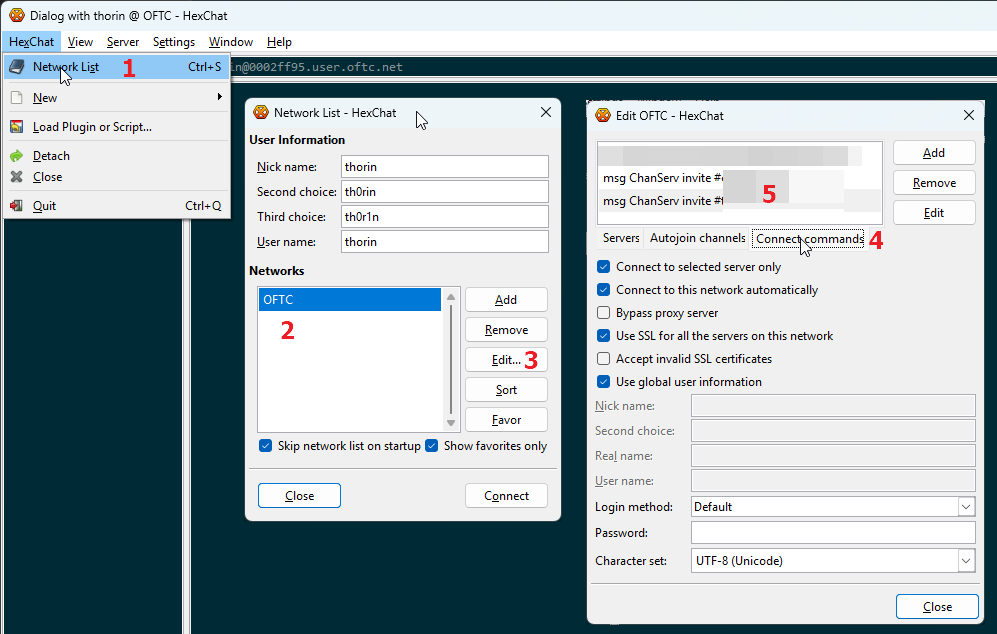
Essentially, it seems to be:
- HexChat > Network List (control-s)
- Select the network name (e.g.
OFTC) - Click "Edit..."
- Select the "Connect commands" tab
- Click "Add"
- set the command to
msg ChanServ invite #cakeorpie - repeat 5-6 for
#tor-internal
Weechat
Apparently, this incantation will set you free:
/set irc.server.oftc.command "/msg nickserv identify $PASSWD;wait 2000;/msg chanserv invite #tor-internal;/msg chanserv invite #cakeorpie"
Ask gman for help if not.
Using the Matrix bridge
Matrix can allow you to access IRC channels which are "bridged" with Matrix channels.
Since mid-April 2021, #tor-* channels are bridged (or
"plumbed") between the OFTC IRC network and the
Matrix.org home server (thanks to the debian.social team
since April 2025).
Tor Matrix rooms are listed in the Matrix #tor-space.
By default, you will appear on IRC as a user like
YourMatrixName[mds] (mds stands for matrix.debian.social, the
debian.social home server).
To access the public channels, you do not need any special configuration other than setting up a Matrix account, joining #tor-space and its related rooms.
Picking a client and home server
Matrix is federated and you can create your Matrix account on the consenting homeserver of your choosing.
However, if you decide to use a homeserver that is not Matrix.org, expect reduced functionality and reliability, see Inconsistencies in the Matrix federation and implementations.
Similarly, not all clients support the same set of features. Instructions on how to do various things will differ between different clients: we typically try to be client agnostic, but often documentation will assume you are using Element or Element X.
For a more consistent user experience, use the Element X client with a Matrix.org account.
Internal channel access
This does not grant you to the two internal channels, #tor-internal
and #cakeorpie. For that, you need to request access to the "Tor
Internal Space". For that, file a ticket in the TPA tracker, with
the ~IRC label, and mention your Matrix user identifier
(e.g. @alice:matrix.org).
Note: in Element, you can find your Matrix ID by clicking on your avatar on the top-left corner.
For TPA: the "moderators" of the internal space (currently @anarcat, @ahf and @micah) have access to grant those permissions. This is done by inviting the user to the private space, simply.
Switching from the legacy bridge
Users from the legacy matrix.org bridge will need to migrate to the
new debian.social bridge. As of 2025-04-15, the matrix.org has
become desperately unreliable and not answering in direct messages,
and will likely be completely retired soon, so it's important people
switch to the new bridge to keep seeing messages. (See also
tpo/tpa/team#42053 for background.)
To switch from the legacy bridge, follow this procedure:
-
First, make sure you have been invited to the "Tor internal space" (see above), which involves sending your Matrix ID (e.g.
@alice:matrix.org) to a moderator of the space (currently @anarcat, @ahf or @micah)In Element, you can find your Matrix ID by clicking on your avatar on the top-left corner.
-
Leave the legacy "cake or pie" Matrix room. in Element, this involves clicking the little "i" icon, then the red "Leave room" button
-
Wait for that to fully complete, it can sometimes take a while.
-
Accept the invitation to the "Tor internal space"
-
You should now see the two internal channels, join "Cake or pie"
-
Send a message to the room (e.g. "Hi! this is a test from the new matrix bridge"), you should see people reply
-
Leave the legacy "tor internal" Matrix room
-
Join the "Tor Internal" Matrix room from the "Tor Internal Space"
If you're lost at that last step, you can find the "Tor Internal" Matrix room in the "Tor Space" and scrolling down, or expanding the space by clicking the arrow next to the "Tor Space" icon, and looking in the "Tor Internal Space"
Those cover the two internal rooms: if you are joined through other
rooms in the old bridge, you will need to leave those rooms as well
and join the new rooms, which should be listed in the "Tor Project
Space" (#tor-space:matrix.org). You should be able to join the rooms
directly with their alias as well, for example, the #tor-project
channel is #tor-project:matrix.org.
As you can see, this can be pretty confusing because there can be multiple "Tor Internal" rooms in Matrix. So, some clarification to avoid confusion:
- "Tor Project Space": public Matrix "space" (alias
#tor-space:matrix.org) which regroups all Matrix rooms operated by Tor, and the "Tor Internal Space" - "Tor Internal Space": internal Matrix space which regroups internal Matrix rooms
#tor-internal: internal IRC channel- "Tor Internal": internal Matrix room bridged with
#tor-internalthrough thedebian.socialbridge, internal ID:!kSemheZJSaMFRYUQMy:matrix.org, alias#tor-internal:matrix.org - legacy "Tor Internal": old matrix room that was "portaled" into
#cakeorpiethrough the legacymatrix.orgbridge, internal ID!azmxAyudExaxpdATpW:matrix.org. that is the "bad" room. #cakeorpie: internal IRC channel for social chatter- "Cake or pie": Matrix room that is bridged to
#cakeorpiethrough thedebian.socialbridge, internal ID!oYgyLUfxcwLccMNubm:matrix.org. that is the "good" room, alias#cakeorpie:matrix.org - legacy "Cake or pie": old matrix room that was "portaled" into
#cakeorpiethrough thematrix.orgbridge, internal ID!HRkvwgoHhxxegkVaQY:matrix.org. that is the "bad" room.
Legacy portaled rooms
Internal IRC channels were previously bridged to Matrix rooms using the Portal rooms functionality.
THIS IS DEPRECATED AND WILL STOP WORKING WHEN THE Matrix.org BRIDGE IS RETIRED! DO NOT USE!
The syntax of portaled room is #_oftc_#channelname:matrix.org which
corresponds to #channelname on OFTC. To access internal channels,
you will need to:
- Choose a stable IRC nick to use instead of the automatic bridged nick, if you haven't already (this is optional! your current nick might actually be fine!)
- Set your bridged nick to that stable nick by sending
!nick <yournick>to @oftc-irc:matrix.org (again, optional) - If your nick is already registered you will get a PM from
NickServ (
@_oftc_NickServ:matrix.org) stating that you need to authenticate. Do so by responding withidentify <yourpassword>. - If your nick isn't registered, you must do so before you'll be granted
access to internal channels. You can do so by sending
register <password> <e-mail>to NickServ (@_oftc_NickServ:matrix.org), and following the instructions. - Join the test channel
#tor-matrix-testchannel by sending!join #tor-matrix-testto@oftc-irc:matrix.org. - Get someone to add you to the corresponding
GroupServlists (see above) and tell you the secret password - Send
!join #tor-internal <channel password>to@oftc-irc:matrix.org. Same with#cakeorpie.
For more information see the general Matrix bridge documentation and the IRC bridge documentation.
If none of this works, file a ticket in the TPA tracker, with the ~IRC label.
Note that this only works through the legacy matrix.org OFTC bridge,
which is scheduled for retirement in March 2025, see
tpo/tpa/team#42053. The matrix.org bridge is also unreliable
and you might miss some messages, see Matrix bridge
disconnections for details.
Howto
We do not operate the OFTC network. The public support channel for
OFTC is #oftc.
Using the ZNC IRC bouncer
The last time this section was updated (or that someone remembered to update the date her) is: 28 Feb 2020. The current ZNC admin is pastly. Find him on IRC or at pastly@torproject.org if you need help.
You need:
- your ZNC username. e.g.
jacob. For simplicity, the ZNC admin should have made sure this is the same as your IRC nick - your existing ZNC password. e.g.
VTGdtSgsQYgJ - a new password
Changing your ZNC password
If you know your existing one, you can do this yourself without the ZNC admin.
Given the assumptions baked into the rest of this document, the correct URL to visit in a browser is https://ircbouncer.torproject.org:2001/. There is also a hidden service at http://eibwzyiqgk6vgugg.onion/.
- log in with your ZNC username and password
- click Your Settings in the right column menu
- enter your password in the two boxes at the top of the page labeled Password and Confirm Password
- scroll all the way down and click Save
Done. You will now need to remember this new password instead of the old one.
Connecting to ZNC from an IRC client
Every IRC client is a little different. This section is going to tell you the information you need to know as opposed to exactly what you need to do with it.
- For a nick, use your desired nick. The assumption in this document is
jacob. Leave alternate nicks blank, or if you must, add an increasing number of underscores to your desired nick for them:jacob_,jacob__... - For the server or hostname, the assumption in this document is
ircbouncer.torproject.org. - Server port is 2001 based on the assumption blah blah blah
- Use SSL/TLS
- For a server password or simply password (not a nickserv password: that's
different and unnecessary) use
jacob/oftc:VTGdtSgsQYgJ.
That should be everything you need to know. If you have trouble, ask your ZNC admin for help or find someone who knows IRC. The ZNC admin is probably the better first stop.
OFTC groups
There are many IRC groups managed by GroupServ on the OFTC network:
@tor-chanops@tor-ircmasters@tor-ops@tor-people@tor-randoms@tor-tpomember@tor-vegas
People generally get access to things through one or many of the above groups. When someone leaves, you might want to revoke their access, for example with:
/msg GroupServ access @tor-ircmasters del OLDADMIN
Typically, you will need to add users to the @tor-tpomember group,
so that they can access the internal channels
(e.g. #tor-internal). This can be done by the "Group Masters", which
can be found by talking with GroupServ:
/msg GroupServ info @tor-tpomember
You can list group members with:
/msg GroupServ access @tor-tpomember list
Adding or removing users from IRC
Typically you would add them to the @tor-tpomember group with:
/msg GroupServ access @tor-tpomember add $USER MEMBER
... where $USER is replaced with the nickname registered to the
user.
To remove a user from the group:
/msg GroupServ access @tor-tpomember del $USER MEMBER
Allow Matrix users to join +R channels
If your channel is +R (registered users only), Matrix users will
have trouble joining your channel. You can add an exception to allow
the bridge access to the channel even if the users are not registered.
To do this, you need to be a channel operator, and do the following:
/mode #tor-channel +e *!*@2a01:4f8:241:ef10::/64
This makes it possible for matrix users to speak in +R rooms, see
ChannelModes by allowing the range of IP addresses Matrix users
show up as from the bridge.
Or you can just tell Matrix users to register on IRC, see the Using the Matrix bridge instructions above.
Adding channels to the Matrix bridge
File a ticket in the TPA tracker, with the ~IRC label. Operators of the Matrix bridge need to add the channel, you can explicitly ping @anarcat, @gus and @ahf since they are the ones managing the bridge.
debian.social
The debian.social team has gracefully agreed to host our bridge following the demise of the matrix.org bridge in March 2025. @anarcat has been granted access to the team and is the person responsible for adding/removing bridged channels. The procedure to follow to add bridged channel is:
- clone the configuration repository if not already done
(
ssh://git@salsa.debian.org/debiansocial-team/sysadmin/config) - add the the room configuration to the bridge, with the opaque ID, for example like this:
--- a/bundles/matrix-appservice-irc/files/srv/matrix-appservice-irc/config.yaml
+++ b/bundles/matrix-appservice-irc/files/srv/matrix-appservice-irc/config.yaml
@@ -884,6 +884,11 @@ ircService:
             matrixToIrc:
               initial: true
               incremental: true
+          #tor-www-bots:
+          - room: "!LpnGViCmMNjJYTXwjF:matrix.org"
+            matrixToIrc:
+              initial: true
+              incremental: true

         # Apply specific rules to IRC channels. Only IRC-to-matrix takes effect.
         channels:
@@ -1156,6 +1161,8 @@ ircService:
           roomIds: ["!BVISXmIJfYibljSXNs:matrix.org"]
         "#tor-vpn":
           roomIds: ["!VCzbomHQpQuMdsPSWu:matrix.org"]
+        "#tor-www-bots":
+          roomIds: ["!LpnGViCmMNjJYTXwjF:matrix.org"]
         "#tor-www":
           roomIds: ["!qyImLEShVvoqqhuASk:matrix.org"]
-
push the change to salsa
-
deploy the change with:
ssh config.debian.social 'git pull && bw apply matrix_ds' -
invite
@mjolnir:matrix.debian.socialas moderator in the matrix room: this is important because the bot needs to be able to invite users to the room, for private rooms -
make sure that
@tor-root:matrix.orgis admin -
if the channel is
+R, add a new+Iline:/mode #tor-channel +I *!*@2a01:4f8:241:ef10::/64This makes it possible for matrix users to speak in
+Rrooms, see ChannelModesIf the channel was previously bridged with matrix.org , remove the old exception:
/mode #tor-channel -I *!*@2001:470:1af1:101::/64 -
from IRC, send a ping, same from Matrix, wait for each side to see the message of the other
-
remove yourself from admin, only if
tor-rootis present
To change from the OFTC to the debian.social bridge, it's essentially the same procedure, but first:
-
disconnect the old bridge (send
!unlink !OPAQUE:matrix.org irc.oftc.net #tor-exampleto@oftc-irc:matrix.org, for example#tor-adminwas unlinked with!unlink !SocDtFjxNUUvkWBTIu:matrix.org irc.oftc.net #tor-admin) -
at this point, you should see Matrix users leaving from the IRC side
-
wait for the bridge bot to confirm the disconnection
-
do the above procedure to add the room to the bridge
-
move to the next room
Matrix.org
IMPORTANT: those instructions are DEPRECATED. The Matrix bridge is going away in March 2025 and will stop operating properly.
For those people, you need to use the Element desktop (or web) client to add the "IRC bridge" integration. This is going to require an operator in the IRC channel as well.
To an IRC channel with a Matrix.org room in Element:
-
create the room on Matrix. we currently name rooms with
#CHANNELNAME:matrix.org, so for example#tor-foo:matrix.org. for that you actually need an account onmatrix.org -
invite and add a second admin in case you lose access to your account
-
in Element, open the room information (click the little "Info" button (a
iin a green circle) on the top right) -
click on
Add widgets, bridges & bots -
choose
IRC Bridge (OFTC) -
pick the IRC channel name (e.g.
#tor-foo) -
pick an operator (
+omode in the IRC channel) to validate the configuration -
from IRC, answer the bot's question
Other plumbed bridges
Note that the instructions for Matrix.org's OFTC bridge are based on a
proprietary software integration (fun) in Element. A more "normal" way
to add a plumbed room is to talk to the appservice admin
room
using the !plumb command:
!plumb !tor-foo:example.com irc.oftc.net #tor-foo
There also seems to be a place in the configuration file for such mappings.
Changing bridges
It seems possible to change bridges if they are "plumbed". The above configurations are "plumbed", as opposed to "portaled".
To change the bridge in a "plumbed" room, simply remove the current
bridge and add a new one. In the case of Matrix.org, you need to go in
the integrations and remove the bridge. For the control room, the
command is !unlink and then !plumb again.
"Portaled" rooms look like #oftc_#tor-foo:matrix.org and those
cannot be changed: if the bridge dies, the portal dies with it and
Matrix users need to join another bridge.
Renaming a Matrix room
Getting off-topic here, but if you created a Matrix room by mistake and need to close it and redirect users elsewhere, you need to create a tombstone event, essentially. A few cases where this can happen:
- you made the room and don't like the "internal identifier" (also known as an "opaque ID") created
- the room is encrypted and that's incompatible with the IRC bridge
Pager playbook
Disaster recovery
Reference
We operate a virtual machine for people to run their IRC clients,
called chives.
A volunteer (currently pastly) runs a ZNC bouncer for TPO people on their own infrastructure.
Some people connect to IRC intermittently.
Installation
The new IRC server has been setup with the roles::ircbox by weasel
(see ticket #32281) in october 2019, to replace the older
machine. This role simply sets up the machine as a "shell server"
(roles::shell) and installs irssi.
KGB bot
The kgb bot is rather undocumented. The Publishing notifications on IRC GitLab documentation is the best we've got in terms of user docs, which isn't great.
The bot is also patched to support logging into the #tor-internal
channel, see this patch which missed the trixie merge window and
was lost during the upgrade. Hopefully that won't happen again.
KGB is also a bit overengineered and too complicated. It also doesn't
deal with "mentions" (like, say, tpo/tpa/team#4000 should announce
that issue is in fact the "Gitlab Migration Milestone") - another bot
named tor, managed by ahf outside of TPA, handles that.
There are many IRC bots out there, needless to say, and many of them
support receiving webhooks in particular. Anarcat maintains a list of
Matrix bots, for example, which includes some webhook receivers,
but none that do both what tor and KGB-BOT do.
gitlabIRCed seems to be one promising alternative that does both, as well.
More generic bots like limnoria actually do support providing both a webhook endpoint and details about mentioned issues, through third party plugins.
Might be worth examining further. There's a puppet module.
Installation: ZNC
This section documents how pastly set up ZNC on TPA infra. It was originally written 20 Nov 2019 and the last time someone updated something and remembered to update the date is:
Last updated: 20 Nov 2019
Assumptions
- Your username is
pastly. - The ZNC user is
ircbouncer. - The host is
chives.
Goals
- ZNC bouncer maintaining persistent connections to irc.oftc.net for "Tor people" (those with @torproject.org addresses is pastly's litmus test) and buffering messages for them when they are not online
- Insecure plaintext connections to ZNC not allowed
- Secure TLS connections with valid TLS certificate
- Secure Tor onion service connections
- ZNC runs as non-root, special-purpose, unprivileged user
At the end of this, we will have ZNC reachable in the following ways for both web-based configuration and IRC:
- Securely with a valid TLS certificate on port 2001 at ircbouncer.torproject.org
- Securely via a Tor onion service on port 80 and 2000 at some onion address
Necessary software
-
Debian 10 (Buster)
-
ZNC, tested with
pastly@chives:~$ znc --version ZNC 1.7.2+deb3 - https://znc.in IPv6: yes, SSL: yes, DNS: threads, charset: yes, i18n: no, build: autoconf -
Tor (optional), tested with
pastly@chives:~$ tor --version
Tor version 0.3.5.8.
Setup steps
Obtain necessary software
See previous section
Create a special user
Ask your friendly neighborhood Tor sysadmin to do this for you. It needs its
own home directory and you need to be able to sudo -u to it. For example:
pastly@chives:~$ sudo -u ircbouncer whoami
[sudo] password for pastly on chives:
ircbouncer
But to do this you need ...
Create a sudo password for yourself
If you don't have one already.
-
Log in to https://db.torproject.org/login.html with the Update my info button. Use your LDAP password.
-
Use the interface to create a sudo password. It probably can be for just the necessary host (chives, for me), but I did it for all hosts. It will give you a gpg command to run that signs some text indicating you want this change. Email the resulting block of armored gpg output to changes@db.torproject.org.
-
After you get a response email indicating success, want 10 minutes and you should be able to run commands as the
ircbounceruser.pastly@chives:~$ sudo -u ircbouncer whoami [sudo] password for pastly on chives: ircbouncer
Choose a FQDN and get a TLS certificate
Ask your friendly neighborhood Tor sysadmin to do this for you. It could be chives.torproject.org, but to make it easier for users, my Tor sysadmin chose ircbouncer.torproject.org. Have them make you a valid TLS certificate with the name of choice. If using something like Let's Encrypt, assume they are going to automatically regenerate it every ~90 days :)
They don't need to put the cert/keys anywhere special for you as long as the ircbouncer user can access them. See how in this ticket comment ...
root@chives:~# ls -al /etc/ssl/private/ircbouncer.torproject.org.* /etc/ssl/torproject/certs/ircbouncer.torproject.org.crt*
-r--r----- 1 root ssl-cert 7178 nov 18 20:42 /etc/ssl/private/ircbouncer.torproject.org.combined
-r--r----- 1 root ssl-cert 3244 nov 18 20:42 /etc/ssl/private/ircbouncer.torproject.org.key
-r--r--r-- 1 root root     2286 nov 18 20:42 /etc/ssl/torproject/certs/ircbouncer.torproject.org.crt
-r--r--r-- 1 root root     1649 nov 18 20:42 /etc/ssl/torproject/certs/ircbouncer.torproject.org.crt-chain
-r--r--r-- 1 root root     3934 nov 18 20:42 /etc/ssl/torproject/certs/ircbouncer.torproject.org.crt-chained
And the sysadmin made ircbouncer part of the ssl-cert group.
ircbouncer@chives:~$ id
uid=1579(ircbouncer) gid=1579(ircbouncer) groups=1579(ircbouncer),116(ssl-cert)
Couple nice things
-
Create a .bashrc for ircbouncer.
pastly@chives:~$ sudo -u ircbouncer cp /home/pastly/.bashrc /home/ircbouncer/.bashrc
-
Add proper
XDG_RUNTIME_DIRto ircbouncer's .bashrc, only optional if you can remember to do this every time you interact with systemd in the futurepastly@chives:~$ sudo -u ircbouncer bash ircbouncer@chives:/home/pastly$ cd ircbouncer@chives:~$ echo export XDG_RUNTIME_DIR=/run/user/$(id -u) >> .bashrc ircbouncer@chives:~$ tail -n 1 .bashrc export XDG_RUNTIME_DIR=/run/user/1579 ircbouncer@chives:~$ id -u 1579
Create initial ZNC config
If you're rerunning this section for some reason, consider deleting everything and starting fresh to avoid any confusion. If this is your first time, then ignore this code block.
ircbouncer@chives:~$ pkill znc
ircbouncer@chives:~$ rm -r .znc
Now let ZNC guide you through generating an initial config. Important decisions:
-
What port should znc listen on initially? 2000
-
Should it listen on that port with SSL? no
-
Nick for the admin user? I chose pastly. It doesn't have to match your linux username; I just chose it for convenience.
-
Skip setting up a network at this time
-
Don't start ZNC now
ircbouncer@chives:~$ znc --makeconf
[ .. ] Checking for list of available modules...
[ ** ]
[ ** ] -- Global settings --
[ ** ]
[ ?? ] Listen on port (1025 to 65534): 2000
[ ?? ] Listen using SSL (yes/no) [no]:
[ ?? ] Listen using both IPv4 and IPv6 (yes/no) [yes]:
[ .. ] Verifying the listener...
[ ** ] Unable to locate pem file: [/home/ircbouncer/.znc/znc.pem], creating it
[ .. ] Writing Pem file [/home/ircbouncer/.znc/znc.pem]...
[ ** ] Enabled global modules [webadmin]
[ ** ]
[ ** ] -- Admin user settings --
[ ** ]
[ ?? ] Username (alphanumeric): pastly
[ ?? ] Enter password:
[ ?? ] Confirm password:
[ ?? ] Nick [pastly]:
[ ?? ] Alternate nick [pastly_]:
[ ?? ] Ident [pastly]:
[ ?? ] Real name (optional):
[ ?? ] Bind host (optional):
[ ** ] Enabled user modules [chansaver, controlpanel]
[ ** ]
[ ?? ] Set up a network? (yes/no) [yes]: no
[ ** ]
[ .. ] Writing config [/home/ircbouncer/.znc/configs/znc.conf]...
[ ** ]
[ ** ] To connect to this ZNC you need to connect to it as your IRC server
[ ** ] using the port that you supplied.  You have to supply your login info
[ ** ] as the IRC server password like this: user/network:pass.
[ ** ]
[ ** ] Try something like this in your IRC client...
[ ** ] /server <znc_server_ip> 2000 pastly:<pass>
[ ** ]
[ ** ] To manage settings, users and networks, point your web browser to
[ ** ] http://<znc_server_ip>:2000/
[ ** ]
[ ?? ] Launch ZNC now? (yes/no) [yes]: no
Create TLS cert that ZNC can read
There's probably a better way to do this or otherwise configure ZNC to read straight from /etc/ssl for the TLS cert/key. But this is what I figured out.
- Create helper script
Don't copy/paste blindly. Some things in this script might need to change for you.
ircbouncer@chives:~$ mkdir bin
ircbouncer@chives:~$ cat > bin/znc-ssl-copy.sh
#!/usr/bin/env bash
out=/home/ircbouncer/.znc/znc.pem
rm -f $out
cat /etc/ssl/private/ircbouncer.torproject.org.combined /etc/ssl/dhparam.pem > $out
chmod 400 $out
pkill -HUP znc
ircbouncer@chives:~$ chmod u+x bin/znc-ssl-copy.sh
- Run it once to verify it works
It should be many 10s of lines long. It should have more than 1 BEGIN [THING]
sections. The first should be a private key, then one or more certificates,
and finally DH params. If you need help with this, do not share the contents of
this file publicly: it contains private key material.
ircbouncer@chives:~$ ./bin/znc-ssl-copy.sh
ircbouncer@chives:~$ wc -l .znc/znc.pem
129 .znc/znc.pem
ircbouncer@chives:~$ grep -c BEGIN .znc/znc.pem
4
- Make it run periodically
Open ircbouncer's crontab with crontab -e and add the following line
@weekly /home/ircbouncer/bin/znc-ssl-copy.sh
Create ZNC system service
This is our first systemd user service thing, so we have to create the
appropriate directory structure. Then we create a very simple znc.service.
We enable the service (start it automatically on boot) and use --now to
also start it now. Finally we verify it is loaded and actively running.
ircbouncer@chives:~$ mkdir -pv .config/systemd/user
mkdir: created directory '.config/systemd'
mkdir: created directory '.config/systemd/user'
ircbouncer@chives:~$ cat > .config/systemd/user/znc.service
[Unit]
Description=ZNC IRC bouncer service

[Service]
Type=simple
ExecStart=/usr/bin/znc --foreground

[Install]
WantedBy=default.target
ircbouncer@chives:~$ systemctl --user enable --now znc
Created symlink /home/ircbouncer/.config/systemd/user/multi-user.target.wants/znc.service → /home/ircbouncer/.config/systemd/user/znc.service.
ircbouncer@chives:~$ systemctl --user status znc
● znc.service - ZNC IRC bouncer service
   Loaded: loaded (/home/ircbouncer/.config/systemd/user/znc.service; enabled; vendor preset: enabled)
   Active: active (running) since Wed 2019-11-20 15:14:27 UTC; 5s ago
 Main PID: 23814 (znc)
   CGroup: /user.slice/user-1579.slice/user@1579.service/znc.service
           └─23814 /usr/bin/znc --foreground
Access web interface
The sysadmin hasn't opened any ports for us yet and we haven't configured ZNC to use TLS yet. Luckily we can still access the web interface securely with a little SSH magic.
Running this command on my laptop (named cranium) creates an SSH connection
from my laptop to chives over which it will forward all traffic to
127.0.0.1:2000 on my laptop to 127.0.0.1:2000 on chives.
cranium:~ mtraudt$ ssh -L 2000:127.0.0.1:2000 chives.tpo
[... snip the message of the day ...]
pastly@chives:~$
So now I can visit in a browser on my laptop http://127.0.0.1:2000 and gain
access to ZNC's web interface securely.
Add TLS listener for ZNC
Log in to the web interface using the username and password you created during the initial ZNC config creation.
Visit Global Settings from the menu on the right side of the window.
For listen ports, add:
- Port 2001
- BindHost *
- All boxes (SSL, IPv4, ... HTTP) are checked
- URIPrefix /
Click Add and ZNC will open a TLS listener on 2001.
Make ZNC reachable without tricks
-
Ask your friendly neighborhood Tor sysadmin to allow inbound 2001 in the firewall.
I recommend you do not have 2000 open in the firewall because it would allow insecure web and IRC connections. All IRC clients worth using support TLS. If you're super tech savvy and you absolute must use your favorite IRC client that doesn't support TLS, then I think you're smart enough to make an SSH tunnel for your IRC client or use the onion service.
-
Ask your friendly neighborhood Tor sysadmin to configure an onion service.
I'm trying to convince mine to set the following options in the torrc
Log notice syslog
# to use 3 hops instead of 6. not anonymous
# can't do this if you want a SocksPort
SocksPort 0
HiddenServiceSingleHopMode 1
HiddenServiceNonAnonymousMode 1
# actual interesting config
HiddenServiceDir /var/lib/tor/onion/ircbouncer.torproject.org
HiddenServiceVersion 3
HiddenServicePort 80 2000
HiddenServicePort 2000
This config allows someone to access the web interface simply with http://somelongonionaddress.onion. It also allows them to use somelongonionaddress.onion:2000 in their IRC client like they might expect.
Adding a ZNC user
The last time this section was updated (or that someone remembered to update the date her) is: 28 Feb 2020.
You need:
- the user's desired username (e.g.
jacob). for simplicity, make this the same nick as their desired IRC nick even though this isn't technically required by ZNC. - the user's desired ZNC password, or a junk initial one for them (e.g.
VTGdtSgsQYgJ). This does not have to be the same as their nickserv password, and arguably should not be the same for security reasons. - the user's nickserv password (e.g.
upRcjFmf) if registered with nickserv. If you don't know if they are registered with nickserv, it's important to figure that out now. If yes, it's important to get the password from the user.
IMPORTANT: The user should NOT be logged in to IRC as this nick already. If they are, these instructions will not work out perfectly and someone is going to need to know a bit about IRC/nickserv/etc. to sort it out.
Additional assumptions:
- the user has not enabled fancy nickserv features such as certfp (identify with a TLS cert instead of a password) or connections from specific IPs only. I believe the former is technically possible with ZNC, but I am not going to document it at this time.
- the user wants to connect to OFTC
- the correct host/port for IRC-over-TLS at OFTC is irc.oftc.net:6697. Verify at https://oftc.net.
Have a ZNC admin ...
- log in to the web console, e.g. at
https://ircbouncer.torproject.org:2001 - visit Manage Users in the right column menu
- click Add in the table
- input the username and password into the boxes under Authentication
- leave everything in IRC Information as it is: blank except Realname is
ZNC - https://znc.inand Quit Message is%znc% - leave Modules as they are: left column entirely unchecked except chansaver and controlpanel
- under Channels increase buffer size to a larger number such as 1000
- leave Queries as they are: both boxes at 50
- leave Flags as they are: Auth Clear Chan Buffer, Multi Clients, Prepend Timestamps, and Auto Clear Query Buffer checked all other unchecked
- leave everything in ZNC Behavior as it is
- click Create and continue
The admin should be taken to basically the same page, but now more boxes are filled in and--if they were to look elsewhere to confirm--the user is created. Also The Networks section is available now.
The ZNC admin will ...
- click Add in the Networks table on this user's page
- for network name, input
oftc. For - remove content from Nickname, Alt. Nicname, and Ident.
- for Servers on this IRC network, click Add
- input
irc.oftc.netfor hostname,6697for port, ensureSSLis checked, and password is left blank - if the user has a nickserv password, under Modules check nickserv and type the nickserv password into the box.
- click Add Network and return
The admin should be taken back to the user's page again. Under networks, OFTC
should exist now. If the Nick column is blank, wait a few seconds, refresh,
and repeat a few times until it is populated with the user's desired nick. If
what appears is guestXXXX or is their desired nick and a slight modification
that you didn't intend (i.e. jacob- instead of jacob) then there is a
problem. It could be:
- the user is already connected to IRC, when the instructions stated at the beginning they shouldn't be.
- someone other than the user is already using that nick
- the user told you they do not have a nickserv account, but they actually do and it's configured to prevent people from using their nick without identifying
If there is no problem, the ZNC admin is done.
SLA
No specific SLA has been set for this service
Design
Just a regular Debian server with users from LDAP.
Channel list
This is a list of key channels in use as of 2024-06-05:
| IRC | Matrix | Topic |
|---|---|---|
#tor | #tor:matrix.org | general support channel |
#tor-project | #tor-project:matrix.org | general Tor project channel |
#tor-internal | N/A | channel for private discussions |
#cakeorpie | N/A | private social, off-topic chatter for the above |
#tor-meeting | #tor-meeting:matrix.org | where some meetings are held |
#tor-meeting2 | N/A | fallback for the above |
Note that the private channels (tor-internal and cakeorpie) need
secret password and being added to the @tor-tpomember with
GroupServ, part of the tor-internal@lists.tpo welcome email.
Other interesting channels:
| IRC | Matrix | Topic |
|---|---|---|
#tor-admin | #tor-admin:matrix.org | TPA team and support channel |
#tor-alerts | #tor-alerts:matrix.org | TPA monitoring |
#tor-anticensorship | #tor-anticensorship:matrix.org | anti-censorship team |
#tor-bots | #tor-bots:matrix.org | where a lot of bots live |
#tor-browser-dev | #tor-browser-dev:matrix.org | applications team |
#tor-dev | #tor-dev:matrix.org | network team discussions |
#tor-l10n | #tor-l10n:matrix.org | Tor localization channel |
#tor-network-health | #tor-network-health:matrix.org | N/A |
#tor-relays | #tor-relays:matrix.org | relay operators |
#tor-south | #tor-south:matrix.org | Comunidad Tor del Sur Global |
#tor-ux | #tor-ux:matrix.org | UX team |
#tor-vpn | #tor-vpn:matrix.org | N/A |
#tor-www | #tor-www:matrix.org | Tor websites development channel |
#tor-www-bots | N/A | Tor websites bots |
| N/A | !MGbrtEhmyOXFBzRVRw:matrix.org | Tor GSoC |
Issues
There is no issue tracker specifically for this project, File or search for issues in the team issue tracker with the ~IRC label.
Known issues
Matrix bridge reliability
The bridge between IRC and Matrix has been historically quite
unreliable. Since we switched to the matrix.debian.social bridge,
operation has been much more reliable.
It can still happen, under some circumstances, that the Matrix and IRC side disconnect. Typically, this is when the bridge is upgraded or the server rebooted.
Then it can take multiple hours (if not days) for Matrix rooms and IRC channels to synchronize again.
A symptom of this problem is that some (if not all) Matrix rooms will not see messages posted on the bridged IRC channel and/or vice-versa.
If you're trying to resolve that issues, make sure the matrix_ds
user is allowed to join the IRC channel and that "puppets" are
joining. Make sure the +I flags are set on the IRC channel, see
Adding channels to the Matrix bridge.
Indecision in instant communications implementation
While this page is supposed to document our IRC setup, it is growing to also cover a nascent Matrix configuration, through the IRC bridge. Most users currently get onboarded on Matrix instead of IRC, which is causing extra load on TPA which is currently, informally, managing both of those services.
In general, Tor should eventually figure out what it really wants to use for real-time communications. Traditionally, that has been IRC, but IRC operators and moderators have not been able to provide usable workflows for onboarding and offboarding people, which means people have been, individually, forced to look for more viable alternative, which has led people to converge over Matrix. There's a broad, organisation-wide conversation about this happening in tpo/team#223.
Matrix security and design issues
It does not help that Matrix has serious design and security flaws. Back in 2022, anarcat identified a series of issues with Matrix including serious misgivings about the lack of modern moderation mechanisms, poor data retention defaults, limited availability, usability concerns, poor performance, and cryptographic security issues.
In particular, do not rely on end-to-end encryption in Matrix (or, of course, IRC) the same way you would with Signal, see Security Issues in Matrix’s Olm Library. For performance and architectural issues, see why not matrix.
Finally, you should assume that something said on Matrix will persist forever. By default, Synapse, the flagship Matrix home server, does not enable message expiration (see this setting default) and it can be assumed that most servers do not expire messages. According to this comment, Matrix wouldn't even be GDPR compliant.
Inconsistencies in the Matrix federation and implementations
Implementations of the Matrix protocol(s) vary wildly among different servers and clients, up to a point that one cannot assume the existence or reliability of basic features like "spaces" or end-to-end encryption.
In general, anything outside of matrix.org and their flagship client
(Element X) can fail inexplicably. For example:
- we've had reports of difficulties for others to invite
non-
matrix.orgusers to a private room (tpo/tpa/team#42185), - video and audio calls are unreliable across heterogeneous clients and home servers: Element Call only works on Element and specially configured home servers, and Legacy Call doesn't work consistently across clients
- The URL preview functionality may not work (this is only relevant in rooms with encryption disabled, since URL preview does not work in rooms with encryption enabled).
- the September 2025 v12 room upgrade is supported only by recent Synapse home servers (see tpo/tpa/team#42240)
Matrix bridge mode overrides
The Matrix IRC bridge will override the mode on "restricted" rooms
on the Matrix side. A typical example of this is that the
#tor-internal and #cakeorpie Matrix rooms will see their "Access"
setting (join_rule) change from "Space members" (restricted) to
"Invite only" (invite).
The setting needs to be reset in Matrix, by following Settings -> Security & Privacy -> Access and reset it to "Space members".
See the upstream issue for details.
Resolved issues
Matrix attachments visibility from IRC
It used to be that long messages and attachments sent from Matrix were
not visible from IRC. That has been fixed in September 2025 through a
bridge upgrade on matrix.debian.social.
Legacy Matrix bridge disconnections
On the legacy matrix.org bridge, you may get kicked of internal
channels seemingly at random when the bridge restart. You'll then have
to re-authenticate to NickServ, and send a !join command again.
This is due to a bug in the matrix.org IRC appservice which
can't remember your NickServ password, so when it reconnects, you
have to input that password again.
The impact of this is that you lose access to channels that are
"registered-only". This happens without any visible error on your
side, although NickServ will tell you to authenticate.
Note that other bridges (notably, Debian's matrix.debian.social
server, now used to bridge all public channels) do not suffer from
this issue. The legacy bridge is scheduled for retirement in
March 2025, see tpo/tpa/team#42053 for details.
Monitoring and testing
Logs and metrics
Backups
ZNC does not, as far as we know, require any special backup or restore procedures.
Discussion
This page was originally created to discuss the implementation of "bouncer" services for other staff. While many people run IRC clients on the server over an SSH connection, this is inconvenient for people less familiar with the commandline.
It was therefore suggested we evaluate other systems to allow users to have more "persistence" online without having to overcome the "commandline" hurdle.
Goals
Must have
- user-friendly way to stay connected to IRC
Nice to have
- web interface?
- LDAP integration?
Non-Goals
- replacing IRC (let's not go there please)
Approvals required
Maybe checking with TPA before setting up a new service, if any.
Proposed Solution
Not decided yet. Possible options:
- status quo: "everyone for themselves" on the shell server, znc ran by pastly on their own infra
- services admin: pastly runs the znc service for tpo people inside tpo infra
- TPA runs znc bouncer
- alternative clients (weechat, lounge, kiwiirc)
- irccloud
Cost
Staff. Existing hardware resources can be reused.
Alternatives considered
Terminal IRC clients
- irssi in some terminal multiplexer like tmux screen or dtach
- weechat in the same or with another interface like web (Glowbear), Android or iOS
- senpai is similar except it expects a remote bouncer or server with history, for example soju
Bouncers
- soju is a new-generation (IRCv3) bouncer with history support that allows clients to replay history directly, although precious few clients support this (KiwiIRC, Gamja, and senpai at the time of writing), packaged in Debian
- ZNC, a bouncer, currently ran by @pastly on their own infrastructure for some tpo people
Web chat
- convos.chat
- gamja soju-compatible client, not packaged in Debian, NPM/JS
- Glowing bear (weechat frontend)
- lounge webchat (nodejs, not packaged in Debian), see this list of issues
- KiwiIRC both a service and a web app we could run
- qwebirc
Mobile apps
- goguma soju-compatible client, in F-Droid, Google play store and Apple Store
- weechat frontends: Android or iOS
Matrix bridges
Matrix has bridges to IRC, which we currently use but are unreliable, see the Matrix bridge disconnections discussion.
IRC bridges to Matrix
matrix2051 and matrirc are bridges that allow IRC clients to connect to Matrix.
weechat also has a matrix script that allows weechat to talk with Matrix servers. It is reputed to be slow, and is being rewritten in rust.
Discarded alternatives
Most other alternatives have been discarded because they do not work with IRC and we do not wish to move away from that platform just yet. Other projects (like qwebirc) were discarded because they do not offer persistence.
Free software projects:
- Briar - tor-based offline-first messenger
- Jabber/XMPP - just shutdown the service, never picked up
- Jitsi - audio, video, text chat
- Mattermost - opensource alternative to slack, not federated
- Retroshare - old, complex, not packaged
- Rocket.chat - not federated
- Scuttlebutt - not a great messaging experience
- Signal - in use at Tor, but poor group chat capabilities
- Telegram - doubts about security reliability
- Tox - DHT-based chat system
- Wire - not packaged in Debian
- Zulip - "team chat", not federated
Yes, that's an incredibly long list, and probably not exhaustive.
Commercial services:
- IRCCloud - bridges with IRC, somewhat decent privacy policy
- Slack - poor privacy policy
- Discord - voice and chat app, mostly for gaming
- Hangouts - Google service
- Whatsapp - tied to Facebook
- Skype - Microsoft
- Keybase - OpenPGP-encrypted chat, proprietary server-side
None of the commercial services interoperate with IRC unless otherwise noted.