Documentation on video- or audo-conferencing software like Mumble, Jitsi, or Big Blue Button.
con·fer·ence | \ ˈkän-f(ə-)rən(t)s1a : a meeting ("an act or process of coming together") of two or more persons for discussing matters of common concern. Merriam-Webster
While service/irc can also be used to hold a meeting or conference, it's considered out of scope here.
- Tutorial
- How-to
- Reference
- Discussion
Tutorial
Note that this documentation doesn't aim at fully replacing the upstream BBB documentation. See also the BBB tutorials if below does not suffice.
Connecting to Big Blue Button with a web browser
The Tor Big Blue Button (BBB) server is currently hosted at https://bbb.torproject.net/. Normally, someone will start a conference and send you a special link for you to join. You should be able to open that link in any web browser (including mobile phones) and join the conference.
The web interface will ask you if you want to "join the audio" through "Microphone" or "Listen only". You will typically want "Microphone" unless you really never expect to talk via voice (would still be possible), for example if your microphone is broken or if this is a talk which you are just attending.
Then you will arrive at an "echo test": normally, you should hear yourself talk. The echo test takes a while to load, you will see "Connecting to the echo test..." for a few seconds. When the echo test start, you will see a dialog that says:
This is a private echo test. Speak a few words. Did you hear audio?
Typically, you will hear yourself speak with a slight delay, if so, click "Yes", and then you will enter the conference. If not, click "No" and check your audio settings. You might need to reload the web page to make audio work again.
When you join the conference, you may be muted: click on the "crossed" microphone at the bottom of the screen to unmute yourself. If you have a poor audio setup and/or if your room is noisy, you should probably mute yourself when not talking.
See below for tips on improving your audio setup.
Sharing your camera
Once you are connected with a web browser, you can share your camera by clicking the crossed camera icon in the bottom row. See below for tips on improving your video setup.
Sharing your screen or presentation
To share your screen, you must be a "presenter". A moderator (indicated by a square in the user list on the left), can grant you presenter rights. Once you have those privileges, you can enable screen sharing with the right-most icon in the bottom row, which looks like a black monitor.
Note that Firefox in Linux cannot share a specific monitor: only your entire display, see bug 1412333. Chromium on Linux does not have that problem.
Also note that if you are sharing a presentation, it might be more efficient to upload the presentation. Click on the "plus" ("+"), leftmost icon in the bottom row. PDFs will give best results, but that feature actually supports converting any "office" (Word, Excel, etc) document.
Such presentations are actually whiteboards that you can draw on. A moderator can also enable participants to collaboratively draw over it as well, using the toolbar on the right.
The "plus" icon can also enable sharing external videos or conduct polls.
Connecting with a phone
It was previously possible to join BBB sessions over regular phone calls, but that feature has been discontinued as of 2025-10-25 during the server migration.
How-to
Hosting a conference
To host a conference in BBB, you need an account. Ask a BBB admin to grant you one (see the service list to find one) if you do not already have one. Then head to https://bbb.torproject.net/ and log in.
You should end up in your "Home room". It is fine to host ad-hoc meetings there, but for regular meetings (say like your team meetings), you may want to create a dedicated room.
Each room has its own settings where you can, for example, set a special access code, allow recordings, mute users on join, etc. You can also share a room with other users to empower them to have the same privileges as you.
Once you have created the conference, you can copy-paste the link to others to invite them.
Example rooms
Here are a couple of examples of room settings you might want to reuse.
"Home" room
This is the first room created by default in BBB. It's named after your user's first name. In my case it's named "Antoine's Room", for example.
You can leave this room as is and use it as a "scratch" room for random calls that don't fit anywhere else.
It can also be simply deleted, as new rooms can be created relatively easily.
Meetings room
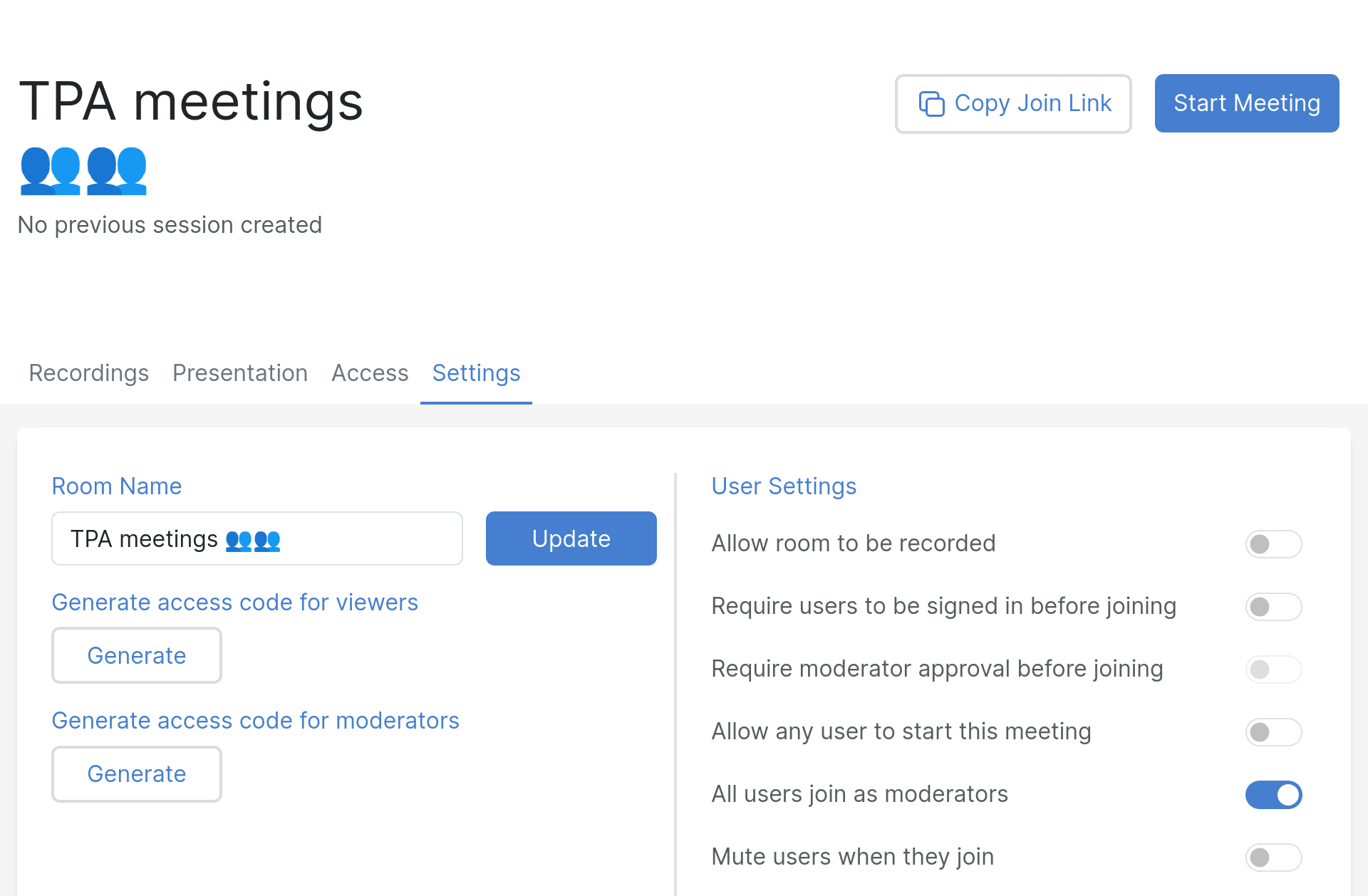
This is where your team holds its recurring meetings. It should be set like this:
- mostly default settings except:
- All users join as moderators, useful to allow your teammates to have presentation powers by default
- share access with your team (needs to be done one by one, unfortunately)
Office hours
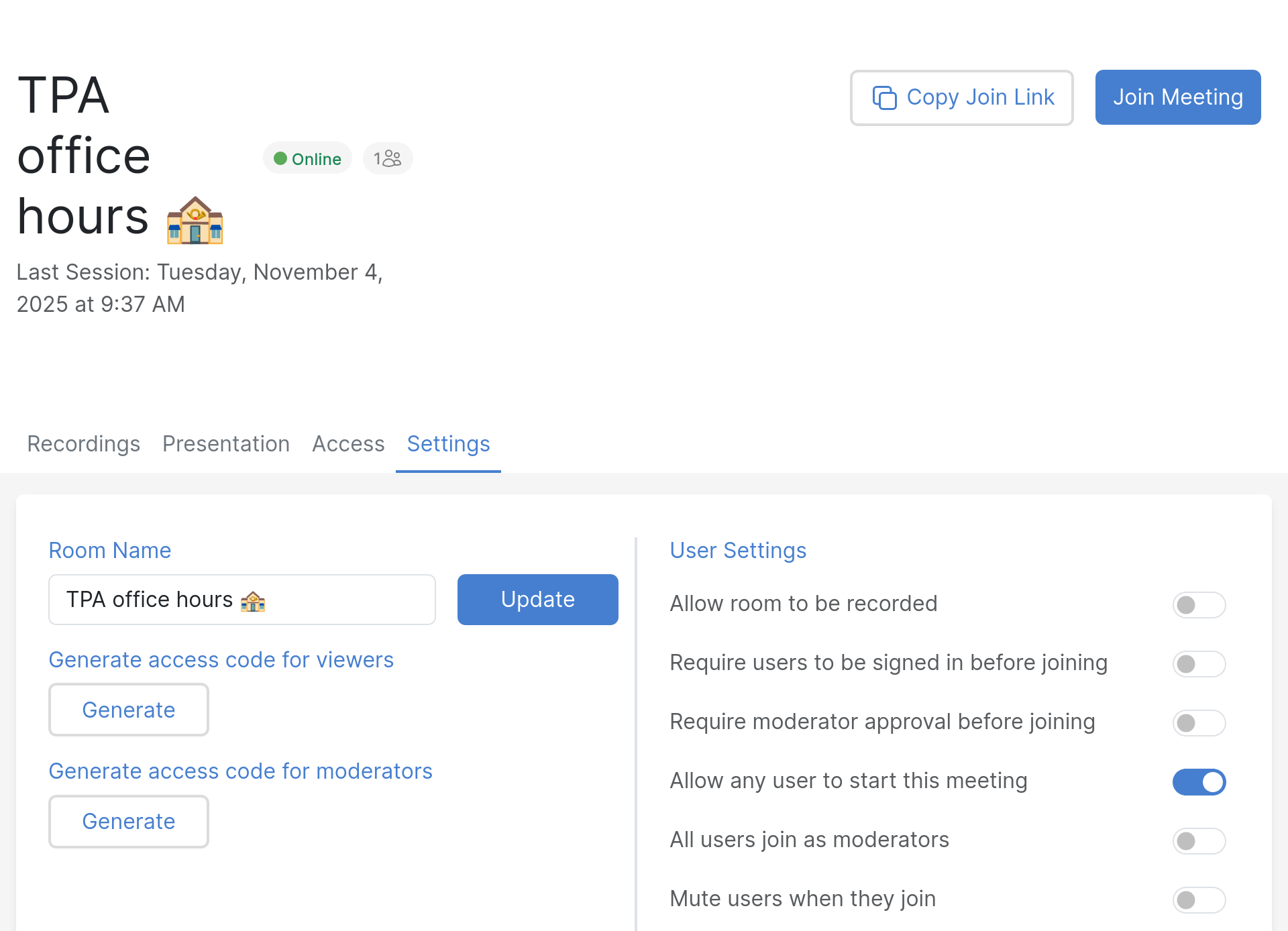
This is a more informal room than the meeting room, where you meet to just hangout together, or provide support to others at specific time windows.
- mostly default settings:
- no recordings
- no sign-in required
- no moderator approval (although this could be enabled if you want to support external users and don't want them to see each other, but perhaps breakout rooms are best for that)
- disable "mute users as they join"
- ... except:
- "Allow any user to start this meeting", so that your teammates can start the office hours even when you're not there
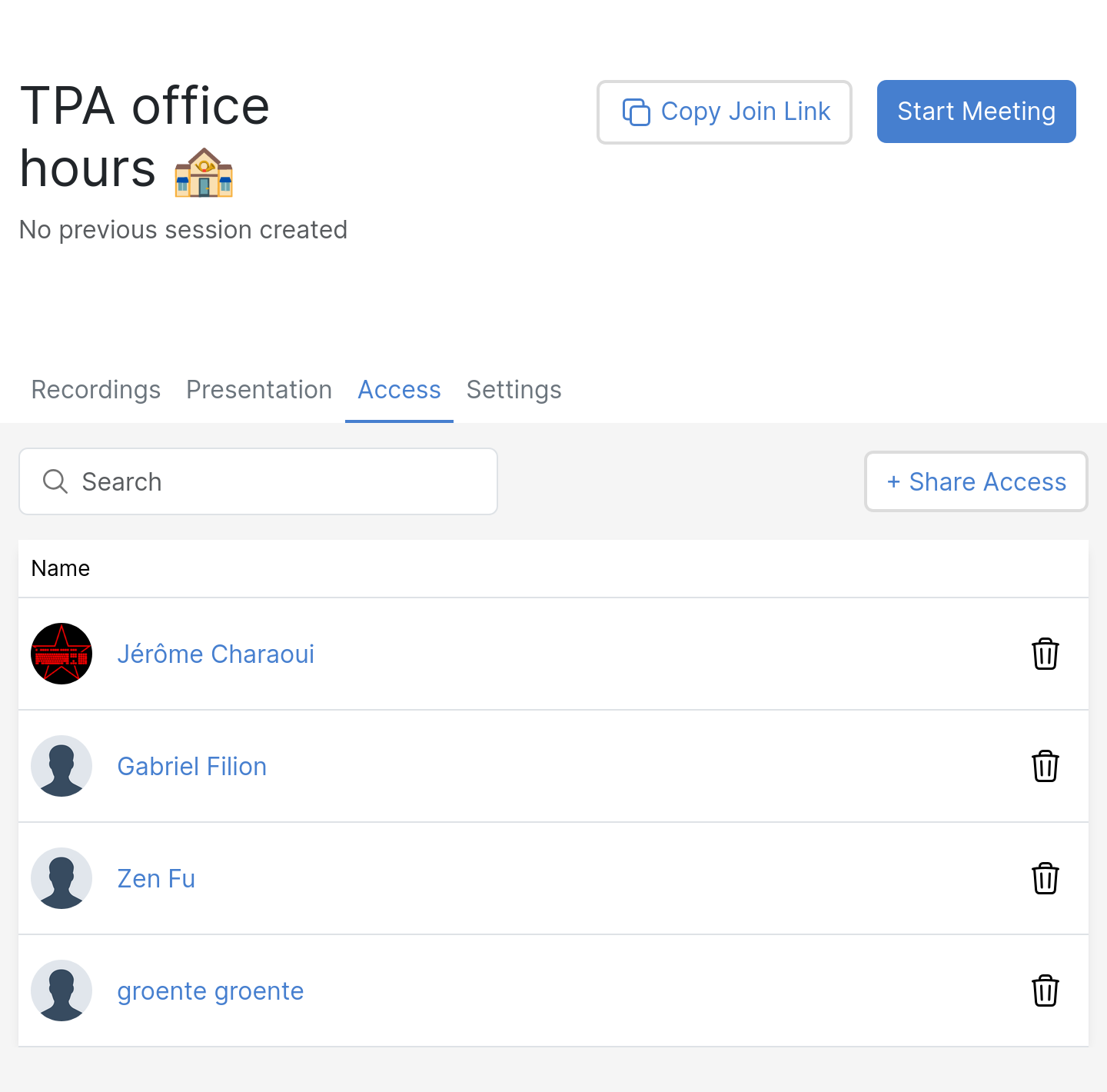
- share access with your team (needs to be done one by one, unfortunately)
- suggested iconography: TEAMNAME office hours ☕
- upload a default presentation
(e.g.
meta/tpa-office-hours.svgfor TPA) that explains the room and gives basic tips to visitors
1:1 room
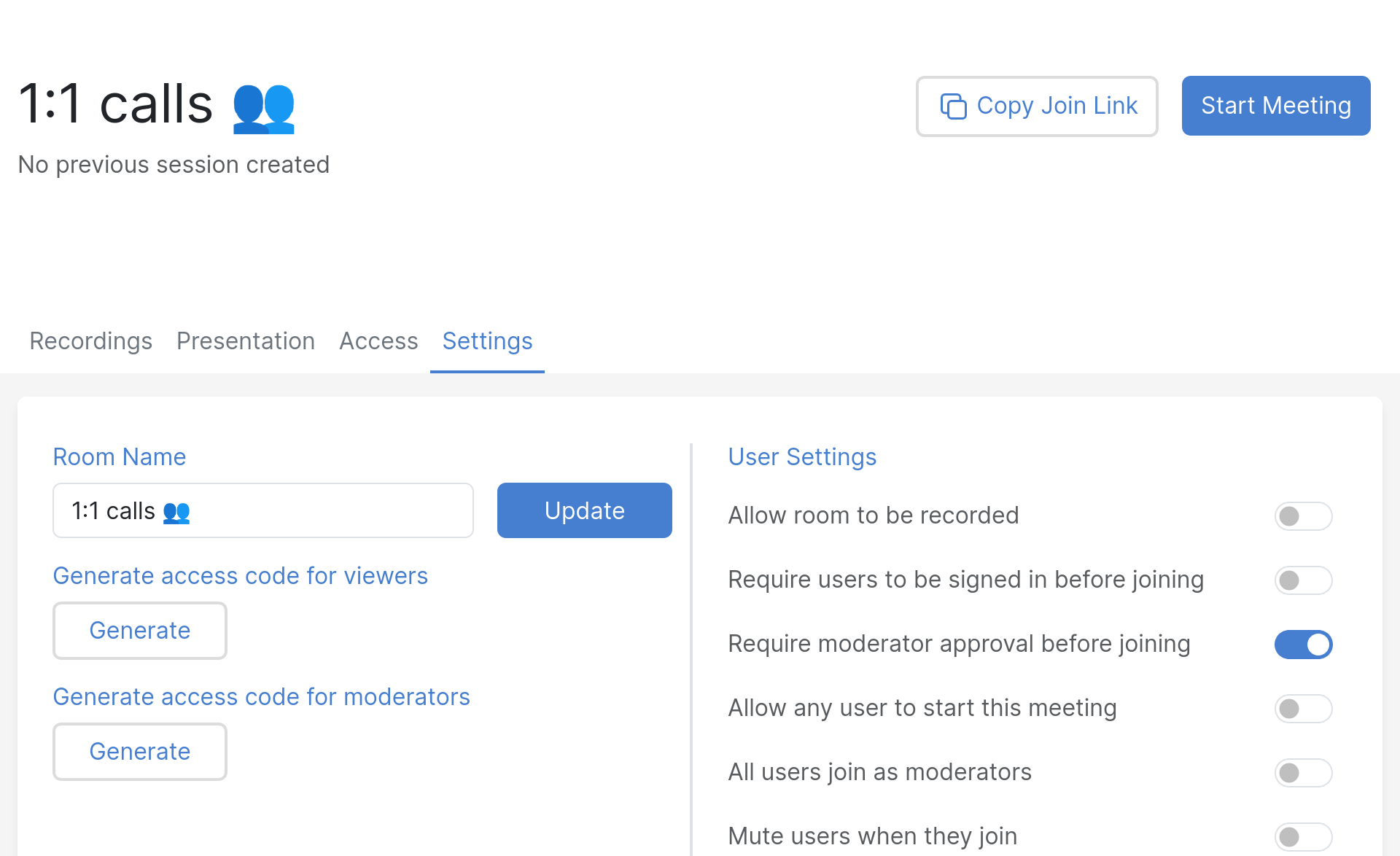
A 1:1 room is essentially the opposite: it needs to be more restricted, and is designed to have 1:1 calls.
- default settings except:
- Require moderator approval before joining, to keep conversation with your peer private in case your meeting goes longer and steps over another scheduled 1:1
- suggested iconography: 1:1 calls 👥 🔔
Interviews
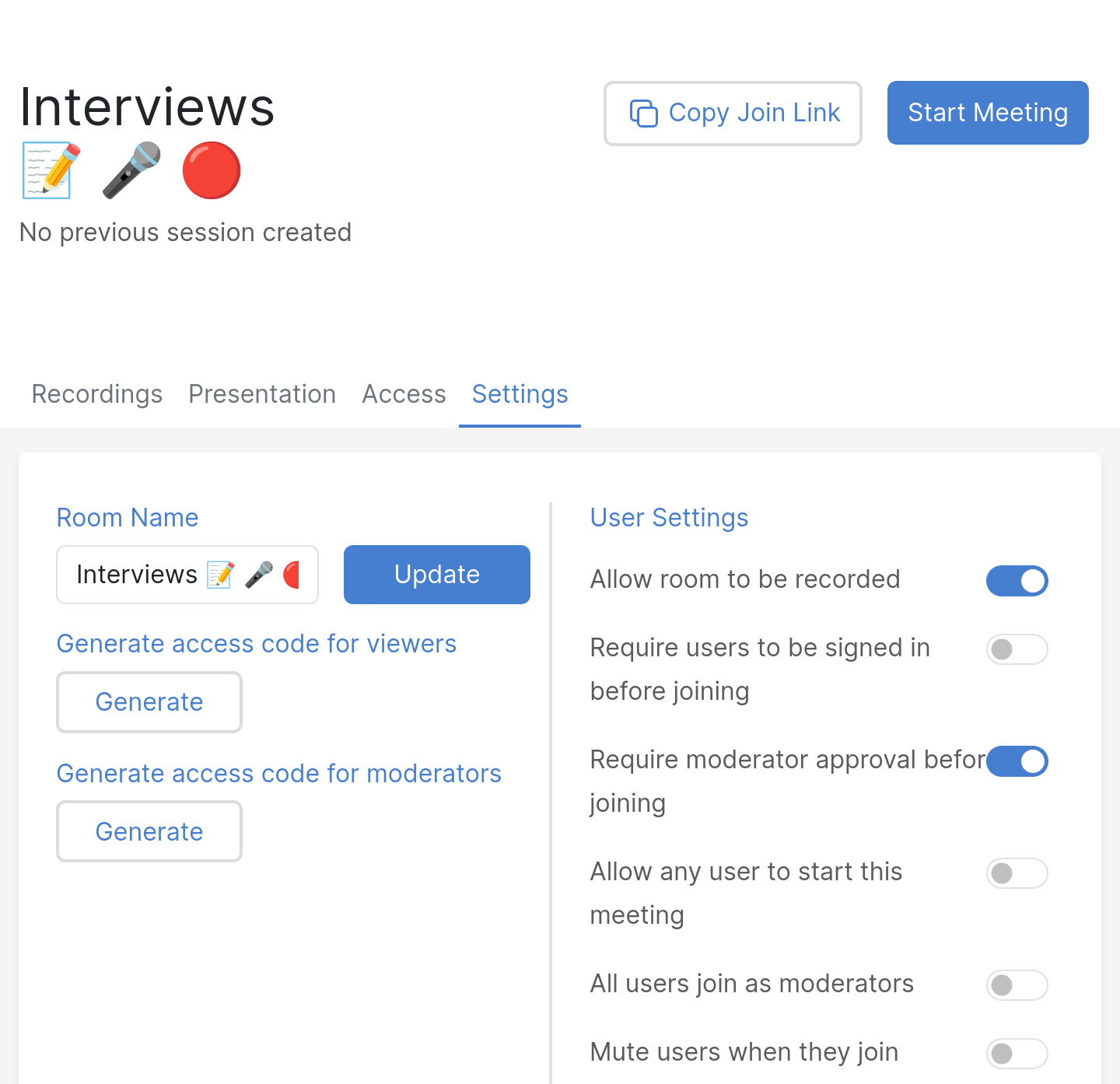
Interviews rooms are designed to interview candidates for job postings, so they require approval (like a 1:1 room) but also allow for recordings, in case someone on your panel missed the interview. It should be configured as such:
- default settings except:L
- recordable: you might want to enable recordings in that room. be careful with recordings, see Privacy issues with recordings for background, but essentially, consider the room recorded as soon as that setting is enabled, even if the "record this room" button is not pressed. Download recordings for safeguarding and delete them when done.
- require moderator approval before joining (keeps the interviewed in a waiting room until approval, extremely important to avoid interviewed folks to see each other!)
- make users unmuted by default (keeps newcomers from stumbling upon the "you're muted, click on the mic big blue button at the bottom" trap, should be default)
- share access with your interview panel so it works even when you're not there
- consider creating a room per interview process and destroying it when done
- suggested iconography: Interviews 📝 🎤 🔴
Breakout rooms
As a moderator, you also have the capacity of creating "breakout rooms" which will send users in different rooms for a pre-determined delay. This is useful for brainstorming sessions, but can be confusing for users, so make sure to explain clearly what will happen beforehand, and remind people before the timer expires.
A common issue that occurs when breakout room finish is that users may not automatically "rejoin" the audio, so they may need to click the "phone" button again to rejoin the main conference.
Improving your audio and video experience
Remote work can be hard: you simply don't have the same "presence" as when you are physically in the same place. But we can help you get there.
Ben S. Kuhn wrote this extraordinary article called "How to make video calls almost as good as face-to-face" and while a lot of its advice is about video (which we do not use as much), the advice he gives about audio is crucial, and should be followed.
This section is strongly inspired by that excellent article, which we recommend you read in its entirety anyways.
Audio tips
Those tips are critical in having a good audio conversation online. They apply whether or not you are using video of course, but should be applied first, before you start going into a fancy setup.
All of this should cost less than 200$, and maybe as little as 50$.
Do:
-
ensure a quiet work environment: find a quiet room, close the door, and/or schedule quiet times in your shared office for your meetings, if you can't have your own office
-
if you have network issues, connect to the network with cable cable instead of WiFi, because the problem is more likely to be flaky wifi than your uplink
- buy comfortable headphones that let you hear your own voice, that is: normal headphones without noise reduction, also known as open-back headphones
- use a headset mic -- e.g. BoomPro (35$), ModMic (50$) -- which will sound better and pick up less noise (because closer to your mouth)
You can combine items 3 and 4 and get a USB headset with a boom mic. Something as simple as the Jabra EVOLVE 20 SE MS (65$) should be good enough until you need professional audio.
Things to avoid:
-
avoid wireless headsets because they introduce a lot of latency
-
avoid wifi because it will introduce reliability and latency issues
Then, as Ben suggests:
You can now leave yourself unmuted! If the other person also has headphones, you can also talk at the same time. Both of these will make your conversations flow better.
This idea apparently comes from Matt Mullenweg -- Wordpress founder -- who prominently featured the idea on his blog: "Don't mute, get a better headset".
Video tips
Here are, directly from from Ben's article, notes specifically about video conferencing. I split it up in a different section because we mostly do audio-only meeting and rarely open our cameras.
So consider this advice purely optional, and mostly relevant if you actually stream video of yourself online regularly.
(~$200) Get a second monitor for notes so that you can keep Zoom full-screen on your main monitor. It’s easier to stay present if you can always glance at people’s faces. (I use an iPad with Sidecar for this; for a dedicated device, the right search term is “portable monitor”. Also, if your meetings frequently involve presentations or screensharing, consider getting a third monitor too.)
($0?) Arrange your lighting to cast lots of diffuse light on your face, and move away any lights that shine directly into your camera. Lighting makes a bigger difference to image quality than what hardware you use!
(~$20-80 if you have a nice camera) Use your camera as a webcam. There’s software for Canon, Fujifilm, Nikon, and Sony cameras. (You will want to be able to plug your camera into a power source, which means you’ll probably need a “dummy battery;” that’s what the cost is.)
(~$40 if you have a smartphone with a good camera) Use that as a webcam via Camo.
(~$350) If you don’t own a nice camera but want one, you can get a used entry-level mirrorless camera + lens + dummy battery + boom arm. See buying tips.
This section is more involved as well, so I figured it would be better to prioritise the audio part (above), because it is more important anyways.
Of the above tips, I found most useful to have a second monitor: it helps me be distracted less during meetings, or at least it's easier to notice when something is happening in the conference.
Testing your audio
Big Blue Button actually enforces an echo test on connection, which can be annoying (because it's slow, mainly), but it's important to give it a shot, just to see if your mic works. It will also give you an idea of the latency between you and the audio server, which, in turn, will give you a good idea of the quality of the call and its interactions.
But it's not as good as a real mic check. For that, you need to record your voice and listen to it later, which an echo test is not great for. There's a site called miccheck.me, built with free software, which provides a client-side (in-browser) application to do an echo test. But you can also use any recorder for this purpose, for example Audacity or any basic sound recorder.
You should test a few sentences with specific words that "pop" or "hiss". Ben (see above) suggests using one of the Harvard sentences (see also wikipedia). You would, for example, read the following list of ten sentences:
- A king ruled the state in the early days.
- The ship was torn apart on the sharp reef.
- Sickness kept him home the third week.
- The wide road shimmered in the hot sun.
- The lazy cow lay in the cool grass.
- Lift the square stone over the fence.
- The rope will bind the seven books at once.
- Hop over the fence and plunge in.
- The friendly gang left the drug store.
- Mesh wire keeps chicks inside.
To quote Ben again:
If those consonants sound bad, you might need a better windscreen, or to change how your mic is positioned. For instance, if you have a headset mic, you should position it just beside the corner of your mouth—not directly in front—so that you’re not breathing/spitting into it.
Testing your audio and video
The above allows for good audio tests, but a fuller test (including video) is the freeconference.com test service, a commercial service, but that provides a more thorough test environment.
Pager playbook
Disaster recovery
Reference
Installation
TPI is currently using Big Blue Button hosted by Maadix at https://bbb.torproject.net/ for regular meetings.
SLA
N/A. Maadix has a cookie policy and terms of service.
Design
Account policy
-
Any Tor Core Contributor can request a BBB account, and it can stay active as long as they remain a core contributor.
-
Organizations and individuals, who are active partners of the Tor Project can request an account and use for their activities, but this is only used in rare exceptions. It is preferable to ask for a core contributor to create a room instead.
-
We encourage everybody with an active BBB account to use this platform instead of third parties or closed source platforms.
-
To limit security surface area, we will disable accounts that haven't logged in during the past 6 months. Accounts can always be re-enabled when people want to use them again.
-
Every member can have maximum 5 conference rooms, and this limit is enforced by the platform. Exceptions to this rule include the Admin and Manager roles which have a limit of 100 rooms. Users requiring such an exception should be promoted to the Admin role, not Manager.
-
The best way to arrange a user account is to get an existing Tor Core Contributor to vouch for the partner. New accounts should be requested contacting TPA.
-
An account will be closed in the case of:
- a) end of partnership between Tor Project and the partner,
- b) or violation of Tor Project’s code of conduct,
- c) or violation of this policy,
- d) or end of the sponsorship of this platform
-
The account member is responsible for keeping the platform secure and a welcome environment. Therefore, the platform shall not be used by others third parties without the explicit consent of the account holder.
-
Every member is free to run private meetings, training, meetups and small conferences.
-
As this is a shared service, we might adapt this policy in the future to better accommodate all the participants and our limited resource.
Issues
There is no issue tracker specifically for this project, File or search for issues in the team issue tracker with the ~BBB label.
Be warned that TPA does not manage this service and therefore is not in a position to fix most issues related with this service. Big Blue Button's issue tracker is on GitHub and Maadix can be contacted for support by TPA at support@maadix.net.
Known issues
Those are the issues with Big Blue Button we are aware of:
- mute button makes a sound when pressed
- has no global remote keyboard control (e.g. Mumble has a way to set a global keyboard shortcut that works regardless of the application in focus, for example to mute/unmute while doing a demo)
- you have to log back in about every week, see tpo/tpa/team#42384 and upstream
Privacy issues with recordings
Recordings have significant security issues documented by Maadix. There are two issues: the "Record" button does not work as expected and room recordings are publicly available in default BBB instances (but not ours).
Some details:
-
as soon as a room is set to "Allow room to be recorded" in the settings, a recording is stored to disk as soon as the room starts, even if the "record" button in the room is not pressed. the "record" button merely "marks" which times that should be recorded, see upstream documentation for details.
This is mitigated by Maadix by cleaning up those source recordings on a regular basis.
-
Access control to rooms is poor: the recordings are normally publicly available, protected only by a checksum and timestamp that are easily guessable (see upstream issue 9443).
This is mitigated by Maadix which implements proper access controls at the web server level, so that only authenticated users can see recordings.
A good rule of thumb is to regularly inspect your recordings, download what you need, and delete everything that is not designed for public consumption.
Resolved issues
Those were fixed:
- breakout rooms do not re-enable audio in main room when completed
Monitoring and testing
TPA does not monitor this instance.
Logs and metrics
N/A. Maadix has a terms of conditions and cookies policy.
Backups
N/A.
Other documentation
Discussion
Overview
With the rise of the SARS-COV-2 pandemic, even Tor, which generally works remotely, is affected because we were still having physical meetings from time to time, and we'll have to find other ways to deal with this. At the start of the COVID-19 pandemic -- or, more precisely, when isolation measures became so severe that normal in-person meetings became impossible -- Tor started looking into deploying some sort of interactive, real-time, voice and ideally video conferencing platform.
This was originally discussed in the context of internal team operations, but actually became a requirement for a 3-year project in Africa and Latin America. It's part of the 4th phase, to support for partners online. Tor has been doing training in about 11 countries, but has been trying to transition into partners on the ground, for them to do the training. Then the pandemic started and orgs are moving online for training. We reached out to partners to see how they're doing it. Physical meetings are not going to happen. We have a year to figure out what to do with the funder and partners. Two weeks ago gus talked with trainers in brazil, tried jitsi which works well but facing problems for trainings (cannot mute people, cannot share presentations). They tried BBB and it's definitely better than Jitsi for training as it's more like an online classroom.
Discussions surrounding this project started in ticket 33700 and should continue there, with decisions and facts gathered in this wiki page.
Goals
Must have
- video/audio communication for groups about 80 people
- specifically, work session for teams internal to TPI
- also, training sessions for people outside of TPI
- host partner organizations in a private area in our infrastructure
- a way for one person to mute themselves
- long term maintenance costs covered, in particular upgrades
- good tech support available
- minimal mobile support (e.g. web app works on mobile)
- recordings privacy: recordings must be private and/or expired properly (see this post about BBB)
Nice to have
- Migration from existing provider
- Reliable video support. Video chat is nice, but most video chat systems usually require all participants to have video off otherwise the communication is sensibly lagged.
- usable to host a Tor meeting, which means more load (because possibly > 100 people) and more tools (like slide sharing or whiteboarding)
- allow people to call in by regular phone
- multi-party lightning talks, with ways to "pass the mic" across different users (currently done with Streamyard and Youtube)
- respecting our privacy, peer to peer encryption or at least encrypted with keys we control
- free and open source software
- tor support
- have a mobile app
- inline chat
- custom domain name
- Single-sign on integration (SAML/OIDC)
Non-goals
- land a man on the moon
Approvals required
- grant approvers
- TPI (vegas?)
The budget will be submitted for a grant proposal, which will be approved by donors. But considering that it's unlikely such a platform would stay unused within the team, the chosen tool should also be approved by the TPI team as well. In fact, it would seem unreasonable to deploy such a tool for external users without first testing it ourselves.
Timeline
- april 2020: budget
- early may 2020: proposal to funders
- june 2020 - june 2021: fourth phase of the training project
Proposed Solution
Cost
Pessimistic estimates for the various platforms.
Each solution assumes it requires a dedicated server or virtual server to be setup, included in the "initial setup". Virtual servers require less work than physical servers to setup.
The actual prices are quoted from Hetzner but virtual servers would probably be hosted in our infrastructure which might or might not incur additional costs.
Summary
| Platform | One time | Monthly | Other |
|---|---|---|---|
| Mumble | 20 hours | €13 | 2h/person + 100$/person for headset |
| Jitsi | 74 hours | €54 + 10 hours | |
| Big Blue Button | 156 hours | €54 + 8 hours |
Caveats
- Mumble is harder to use and has proven to absolutely require a headset to function reliably
- it is assumed that Jitsi and BBB will have similar hardware requirements. this is based on the experience that BBB seems to scale better than Jitsi but since it has more features might require comparatively more resources
- BBB is marked as having a lesser monthly cost because their development cycle seems slower than Jitsi. that might be too optimistic: we do not actually know how reliable BBB will be in production. preliminary reports of BBB admins seem to say it's fairly stable and doesn't require much work after the complex install procedure
- BBB will take much more time to setup. it's more complex than Jitsi, but it also requires an Ubuntu, which we do not currently support in our infrastructure (and an old version too, so upgrade costs were counted in the setup)
- current TPA situation is that we will be understaffed by 50% starting on May 1st 2020, and by 75% for two months during the summary. this project is impossible to realize if that situation is not fixed, and would still be difficult to complete with the previous staff availability.
A safe way to ensure funding for this project without threatening the sability of the team would be to hire at least part time worker especially for the project, which is 20 hours a month, indefinitely.
Mumble
Assumed configuration
- minimal Mumble server
- no VoIP
- no web configuration
One time costs:
- initial setup: 4 hours
- puppet programming: 6 hours
- maintenance costs: near zero
- Total: 10 hours doubled to 20 hours for safety
Recurring costs:
- onboarding training: 2 hours per person
- mandatory headset: 100$USD per person
- CPX31 virtual server: €13 per month
Jitsi
Assumed configuration:
- single server install on Debian
- max 14 simultaneous users
- dial-in capability
One time:
- initial setup: 8 hours
- Puppet one-time programming: 6 hours
- Puppet Jigasi/VoIP integration: 6 hours
- VoIP provider integration: 16 hours
- Total: 36 hours, doubled to 72 hours for safety
Running costs:
- Puppet maintenance: 1 hour per month
- Jitsi maintenance: 4 hours per month
- AX51-NVMe physical server: €54 per month
- Total: 5 hours per month, doubled to 10 hours for safety, +€54 per month
Big Blue Button
Assumed configuration:
- single server install on Ubuntu
- max 30 simultaneous users
- VoIP integration
One time fee:
- initial setup: 30 hours
- Ubuntu installer and auto-upgrade configuration: 8 hours
- Puppet manifests Ubuntu port: 8 hours
- VoIP provider integration: 8 hours
- One month psychotherapy session for two sysadmins: 8 hours
- Ubuntu 16 to 18 upgrade: 16 hours
- Total: 78 hours, doubled to 156 hours for safety
Running costs:
- BBB maintenance: 4 hours per month
- AX51-NVMe physical server: €54 per month
- Total: 4 hours per month, doubled to 8 hours for safety, +€54 per month
Why and what is a SFU
Note that, below, "SFU" means "Selective Forwarding Unit", a way to scale out WebRTC deployments. To quote this introduction:
SFU architecture advantages
- Since there is only one outgoing stream, the client does not need a wide outgoing channel.
- The incoming connection is not established directly to each participant, but to the media server.
- SFU architecture is less demanding to the server resources as compared to other video conferencing architectures.
I think SFUs are particularly important for us because of our distributed nature...
In a single server architecture, everyone connects to the same server. So if that server is in, say, Europe, things are fine if everyone on the call is in Europe, but once one person joins from the US or South America, they have a huge latency cost involved with that connection. And that scales badly: every additional user far away is going to add latency to the call. This can be particularly acute if everyone is on the wrong continent in the call, naturally.
In a SFU architecture, instead of everyone connecting to the same central host, you connect to the host nearest you, and so does everyone else near you. This makes it so people close to you have much lower latency. People farther away have higher latency, but that's something we can't work around without fixing the laws of physics anyways.
But it also improves latency even for those farther away users because instead of N streams traveling across the atlantic, you multiplex that one stream into a single one that travels between the two SFU servers. That reduces latency and improves performance as well.
Obviously, this scales better as you add more local instances, distributed to wherever people are.
Note that determining if a (say) Jitsi instance supports SFU is not trivial. The frontend might be a single machine, but it's the videobridge backend that is distributed, see the architecture docs for more information.
Alternatives considered
mumble
features
- audio-only
- moderation
- multiple rooms
- native client for Linux, Windows, Mac, iOS, Android
- web interface (usable only for "listening")
- chat
- dial-in, unmaintained, unstable
Lacks video. Possible alternatives for whiteboards and screensharing:
- http://deadsimplewhiteboard.herokuapp.com/
- https://awwapp.com/
- https://www.webwhiteboard.com/
- https://drawpile.net/
- https://github.com/screego/server / https://app.screego.net/
installation
there are two different puppet modules to setup mumble:
- https://github.com/voxpupuli/puppet-mumble
- https://0xacab.org/riseup-puppet-recipes/mumble
still need to be evaluated, but i'd be tempted to use the voxpupuli module because they tend to be better tested and it's more recent
jitsi
installation
ansible roles: https://code.immerda.ch/o/ansible-jitsi-meet/ https://github.com/UdelaRInterior/ansible-role-jitsi-meet https://gitlab.com/guardianproject-ops/jitsi-aws-deployment
notes: https://gitlab.com/-/snippets/1964410
puppet module: https://gitlab.com/shared-puppet-modules-group/jitsimeet
there's also a docker container and (messy) debian packages
prometheus exporter: https://github.com/systemli/prometheus-jitsi-meet-exporter
Mayfirst is testing a patch for simultaneous interpretation.
Other Jitsi instances
See Fallback conferencing services.
Nextcloud Talk
systemli is using this ansible role to install coturn: https://github.com/systemli/ansible-role-coturn
BBB
features
- audio, video conferencing support
- accessible with live closed captionning and support for screen readers
- whiteboarding and "slideshow" mode (to show PDF presentations)
- moderation tools
- chat box
- embedded etherpad
- dial-in support with Freeswitch
- should scale better than jitsi and NC, at least according to their FAQ: "As a rule of thumb, if your BigBlueButton server meets the minimum requirements, the server should be able to support 150 simultaneous users, such as 3 simultaneous sessions of 50 users, 6 x 25, etc. We recommend no single sessions exceed one hundred (100) users."
i tested an instance setup by a fellow sysadmin and we had trouble after a while, even with two people, doing a screenshare. it's unclear what the cause of the problem was: maybe the server was overloaded. more testing required.
installation
based on unofficial Debian packages, requires Freeswitch for dial-in, which doesn't behave well under virtualization (so would need a bare metal server). Requires Ubuntu 16.04, packages are closed source (!), doesn't support Debian or other distros
anadahz setup BBB using a ansible role to install BBB.
Update: BBB is now (2.3 and 2.4, end of 2021) based on Ubuntu 18.04, a slightly more up to date release, supported until 2023 (incl.), which is much better. There's also a plan to drop Kurento which will make it easier to support other distributions.
Also, we are now using an existing BBB instance, at https://bbb.torproject.net/, hosted by Maadix. We were previously hosted at meet.coop but switched in October 2025, see TPA-RFC-92.
Rejected alternatives
This list of alternatives come from the excellent First Look Media procedure:
- Apple Facetime - requires Apple products, limited to 32 people and multiple parties only works with the very latest hardware, but E2EE
- Cisco Webex - non-opensource, paid, cannot be self-hosted, but E2EE
- Google Duo - requires iOS, Android, or web client, non-free, limited to 12 participants, but E2EE
- Google Hangouts, only 10 people, Google Meet supports 250 people with a paid subscription, both proprietary
- Jami - unstable but free software and E2EE
- Keybase - chat only
- Signal - chat only
- Vidyo - paid service
- Zoom - paid service, serious server and client-side security issues, not E2EE, but very popular and fairly reliable
Other alternatives
Those alternatives have not been explicitly rejected but are somewhat out of scope, or have come up after the evaluation was performed:
- bbb-scale - scale Big Blue Button to thousands of users
- Boltstream - similar to Owncast, RTMP, HLS, WebVTT sync, VOD
- Galene - single-binary, somewhat minimalist, breakout groups, recordings, screen sharing, chat, stream from disk, authentication, 20-40 participants for meetings, 400+ participants for lectures, no simulcasting, no federation
- Lightspeed - realtime streaming
- Livekit - WebRTC, SFU, based on Pion, used by Matrix in Element Call
- Mediasoup - backend framework considered by BBB developers
- Medooze - backend framework considered by BBB developers
- OpenCast - for hosting classes, editing, less interactive
- OpenVidu - a thing using the same backend as BBB
- Owncast - free software Twitch replacement: streaming with storage, packaged in Debian 14 (forky) and later
- Venueless - BSL, specialized in hosting conferences
- Voctomix and vogol are used by the Debian video team to stream conferences online. requires hosting and managing our own services, although Carl Karsten @ https://nextdayvideo.com/ can provide that paid service.
Fallback conferencing services
Jitsi (defaults to end-to-end encryption):
- https://meet.jit.si/ - official instance, geo-distributed, SFU
- https://vc.autistici.org/ - autistici instance, frontend at Hetzner FSN1, unclear if SFU
- https://meet.mullvad.net/ - Mullvad instance, frontend in Malmo, Sweden, unclear if SFU
- https://meet.mayfirst.org - Mayfirst, frontend in NYC, unclear if SFU
- https://meet.greenhost.net - Greenhost, infrared partners, frontend in Amsterdam, unclear if SFU
- https://jitsi.meet.coop - meet.coop fallback server, hosted at Autonomic
Livekit (optional end-to-end encryption):
- https://meet.livekit.io/ - demo server from the Livekit project, SFU
BBB:
Note that, when using those services, it might be useful to document why you felt the need to not use the official BBB instance, and how the experience went in the evaluation ticket.
Conference organisation
This page is perhaps badly named, as it might suggest it is about organising actual, in person conferences as opposed to audio- or video-conferencing.
Failing a full wiki page about this, we're squatting this space to document software alternatives for organising and managing actual in-person conferences.
Status quo: ad-hoc, pads, Nextcloud and spreadsheets
Right now, we're organising conferences using Etherpads and a spreadsheet. When the schedule is completed, it's posted in a Nextcloud calendar.
This is hard. We got about 52 proposals in a pad for the Lisbon meeting, it was time-consuming to copy-paste those into a spreadsheet. Then it was hard to figure out how to place those in a schedule, as it wasn't clear how much over-capacity we were.
Lots of manual steps, and communication was all out-of-band, by email.
Pretalx / Pretix
Pretalx is a free software option with a hosted service that seems to have it all: CFP management, rooms, capacity scheduling. A demo was tested and is really promising.
With a "tor meeting scale" type of event (< 100 attendees, 0$ entry fee), the pricing is 200EUR per event, unless we self-host.
They also have a ticketing software called pretix which we would probably not need.
Pretalx was used by Pycon US 2023, Mozilla Festival 2022, Nsec, and so on.
Others
-
Wafer is a "wafer-thin web application for running small conferences, built using Django". It's used by the Debian conference (Debconf) to organise talks and so on. It doesn't have a demo site and it's unclear how easy it is to use. Debconf folks implemented a large amount of stuff on top of it to tailor it to their needs, which is a little concerning.
-
summit is the code used by Canonical to organise the Ubuntu conferences, which Debian used before switching to Wafer
-
indico was developed by CERN and is used at many large (think UN) organisations